
Writing
How to create an exe package in Windows
A colleague (thanks Natan) of mine reminded me of a simple but not very well know feature that exists in Windows.
We all download software from the Internet or install applications off a CD or some other media. This is also true if you need to install/transport information into a VM that is not connected to your network.
Some people package them as Zip files, some as ISO’s and some as exe files. Did you ever wonder how these exe files are created??
Expensive Software packagers? Compression utilities? Well, most of us do not know that there is a utility built into the Windows operating system.
The utility is called IEXPRESS, and this is one of the easiest was to make a executable archive.
There is no shortcut available for the utility, but all you need to do is start the search box in Vista/Windows 7 or go to %systemroot%\system32\iexpress.exe

So here we go
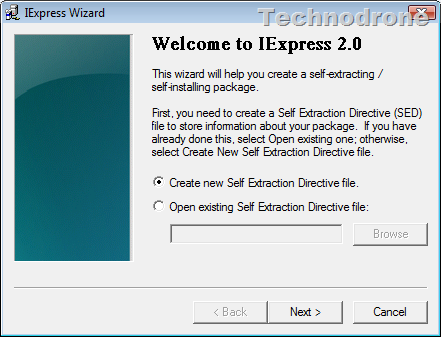
Choose your desired option
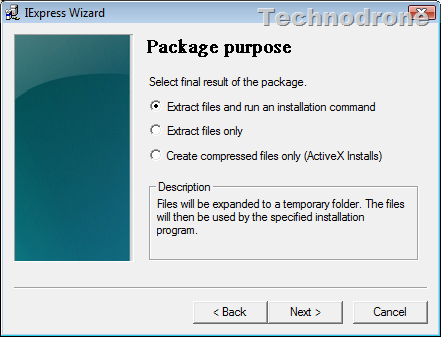
Name your Package
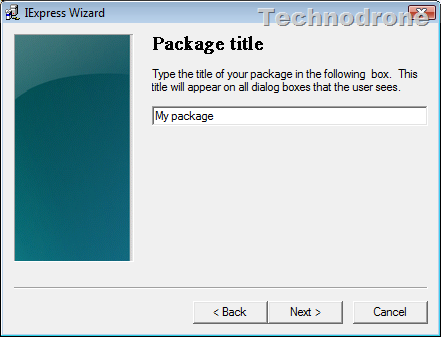
Fill in your desired text

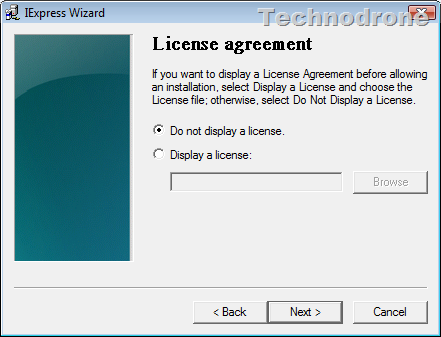
Add a License if you would like
Choose your files that you would like in the package

Choose some more options
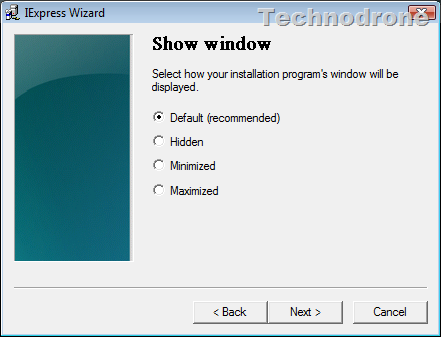
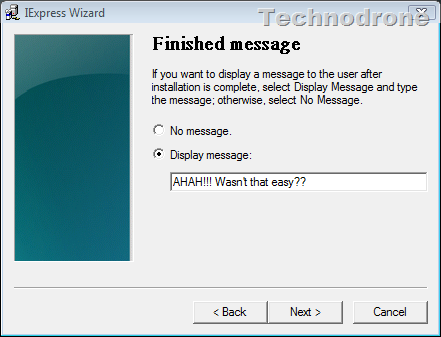
Give the location for the package and some more options

And it does the work
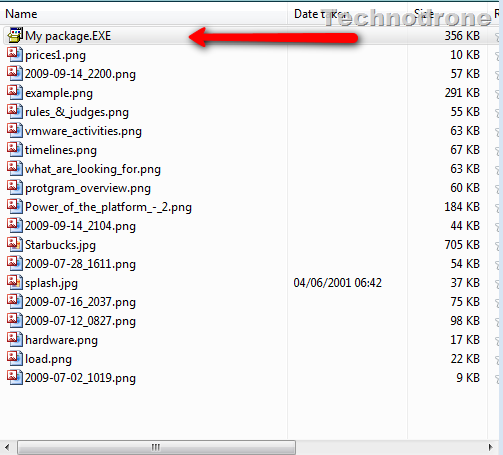
And I now have a package
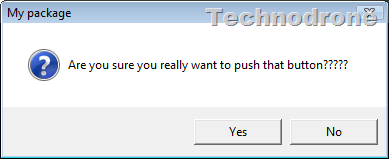
And of course in reverse - double click on the exe

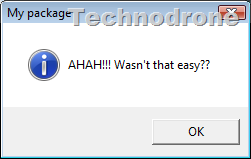
And as they say, “A picture is worth more than a thousand words!!”
Oh yeah, did I mention that this is available in all Microsoft Operating systems??